To boost your satellite internet signal, first ensure the dish is precisely aligned—even a 2-degree misalignment can cause significant loss. Upgrade to a high-gain antenna (e.g., 1.2m diameter) and use a low-noise block (LNB) with a noise figure below 0.7 dB. Check and replace any corroded cables.
Table of Contents
Check Antenna Alignment
Even a slight misalignment of just 1 or 2 degrees can cause your signal strength to drop by 20% or more, leading to constant buffering, timeouts, and complete service drops during bad weather. The goal is to achieve the highest possible signal-to-noise ratio (SNR), which is a direct measure of signal quality. Most providers consider a SNR above 6 dB acceptable, but for stable 4K streaming and lag-free gaming, you should aim for at least 10 dB or higher.
| Parameter | Typical Target Range | Impact of Misalignment |
|---|---|---|
| Azimuth (Left/Right) | Varies by location (e.g., 145.3°) | A 5-degree error can reduce signal by ~30%. |
| Elevation (Up/Down) | Varies by location (e.g., 42.8°) | A 2-degree error can reduce signal by ~25%. |
| Skew (LNB Rotation) | Varies by location (e.g., -12.7°) | Incorrect skew can cause ~15% signal loss on polarized signals. |
You can find your exact azimuth, elevation, and skew coordinates for your specific location and satellite using your provider’s website or a free smartphone app like DishPointer. These apps use your phone’s GPS to give you precise coordinates.
The process is methodical. First, slightly loosen the bolts on the mounting bracket that control the dish’s movement. You will need a wrench (typically 7/16″ or ½”) and a phillips head screwdriver. Have a helper watch the signal strength meter on your receiver’s menu screen (usually found under Settings > Diagnostics), or use an external meter if you have one. The signal meter is a percentage value; you want to maximize this number.
- Make tiny adjustments—move the dish no more than 1/8 of an inch at a time.
- After each tiny movement, pause for 3-5 seconds to allow the receiver to lock onto the new signal and update the meter.
- Once you’ve found the absolute peak signal, carefully tighten all the bolts back up while being careful not to let the dish shift. A common mistake is overtightening and moving the dish off its perfect alignment. Re-check the signal after everything is tight.
For a typical DIY alignment session, the entire process should take about 30 to 60 minutes. If you are uncomfortable working on a ladder or roof, hiring a local professional installer might cost 200, but the payoff is a rock-solid connection. A perfectly aligned dish is your first and best defense against rain fade; it can be the difference between staying online in a light shower versus losing connection completely.
Clear Obstructions for View
Your satellite internet requires a completely clear line of sight to the satellite, which is in a geostationary orbit 22,236 miles (35,786 km) above the equator. Any physical object in the signal’s path doesn’t just weaken the connection; it completely blocks the high-frequency Ka/Ku-band radio waves (ranging from 26.5-40 GHz), causing total service interruption. Unlike Wi-Fi, these signals cannot penetrate solid matter. A common misconception is that a “little” branch in the way is okay—it’s not. The margin for error is incredibly small, a concept known as the Fresnel zone. For satellite internet, you need 100% clearance in a cone-shaped path from your dish to the satellite.
| Obstruction Type | Estimated Signal Impact | Solution |
|---|---|---|
| Heavy Foliage (Wet Leaves) | 100% signal loss during rain | Trim branches back at least 10-15 feet from the path. |
| Tree Branch (2-inch diameter) | Up to 80% signal attenuation | Remove the offending branch entirely. |
| Power Line / Utility Wire | Intermittent loss (50-100%) | Reposition dish mount to avoid line of sight. |
| Fresh Snow Accumulation (2+ inches) | 100% signal block | Gently brush snow off dish surface; do not de-ice. |
Perform a sight check at least twice a year, ideally in early spring when trees are full and again in late fall after leaf drop. The best way to do this is to have someone slowly move around the potential obstruction zone while you watch the signal meter on your receiver’s screen. A signal drop of more than 10-15% while they are moving indicates a problem area that needs to be cleared.
- Tree growth is a slow but relentless enemy. A tree that was 20 feet away and clear 3 years ago may now have branches that have grown 4-5 feet into the signal path. Plan for future growth; don’t just trim for today’s clearance.
- Snow and ice are seasonal blockers. A ¼-inch (6 mm) layer of ice on the dish face can degrade signal by over 50%. A 2-inch (5 cm) blanket of wet snow will block it completely. Using a soft broom or your hand to gently clear accumulation is a 5-minute fix that instantly restores 100% functionality. Never use hot water to de-ice, as the rapid temperature change can crack the dish’s plastic surface and void its 10-year warranty.
The cost of inaction is high. A single obstructing branch can be the reason your video calls freeze 5 times per hour or your download speeds drop from 100 Mbps to 5 Mbps during windy conditions. Maintaining a 200% clear path is the cheapest and most effective way to ensure signal stability 24/7/365.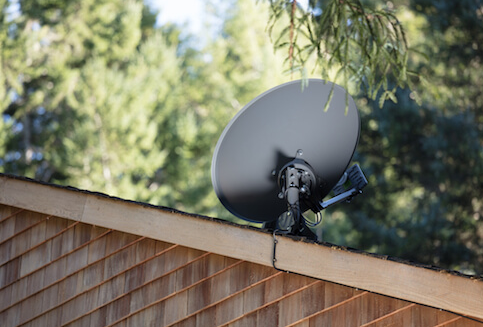
Upgrade Your Router
These are typically entry-level, dual-band AC1200 models with limited processing power. They might have cost your provider 60 in bulk and are designed for basic web browsing, not for handling the 20+ Mbps down/5+ Mbps up connection that modern satellite services provide while simultaneously managing 15+ connected devices like phones, laptops, smart TVs, and game consoles. The router’s main job is traffic management—its CPU and RAM prioritize data packets. An underpowered router under heavy load (80-90% CPU usage) will introduce latency spikes of 100ms or more, making your already high-latency satellite connection feel even slower and causing buffering.
Think of your router as the central post office for your home’s data. A modern Wi-Fi 6 (802.11ax) router is like a massive, automated sorting facility, while an old Wi-Fi 4 (802.11n) model is a small office with one overworked person. The key upgrade isn’t just top speed; it’s efficiency in handling multiple data streams simultaneously. A tri-band Wi-Fi 6 router dedicates one 5 GHz band (at 80 MHz channel width) solely to your high-priority devices, drastically reducing airtime congestion. For a typical 2,500 sq. ft. home, a 250 investment in a quality router can yield a 30-50% improvement in usable wireless speeds and reduce frustrating latency-induced freezes by up to 70%.
- Age is a major factor. If your router is over 3 years old, its hardware is likely struggling with modern internet demands. The NAND flash memory that holds the firmware degrades with thousands of read/write cycles, leading to gradual performance decay and the need for bi-weekly reboots to maintain stability.
- Wi-Fi 6 is the standard to target. It introduces OFDMA (Orthogonal Frequency Division Multiple Access), which allows a single data transmission to serve up to 30 devices at once, instead of making them wait in line. This is crucial for smart homes. A Wi-Fi 6 router can cut average latency for connected devices by 20-40% compared to a Wi-Fi 5 (AC) model, even on the same internet plan.
- Your device’s capabilities matter. To benefit from Wi-Fi 6, your laptop, phone, or TV must also support the standard. Most devices released in the last 2-3 years do. A new router future-proofs your network for the next 5+ years.
- Placement is 50% of the battle. The optimal location is centralized and elevated, away from obstructions like metal filing cabinets or thick concrete walls that can attenuate signal strength by 90%. If you can’t achieve full coverage, a mesh system with 2-3 nodes (costing 400) will eliminate dead zones, providing a strong -50 dBm to -60 dBm signal in every room instead of a weak -80 dBm signal that cuts your speed by over 80%.
Simply put, a router upgrade is the highest ROI action you can take for your local network. It doesn’t improve your satellite signal’s raw speed from the provider, but it ensures that every last megabit that comes into your home is delivered efficiently to your devices without unnecessary bottlenecks. You wouldn’t pump 100 gallons per minute of water through a half-inch garden hose; don’t make your satellite connection do the same.
Manage Data Usage Wisely
Most providers enforce a monthly data allocation, typically ranging from 50 GB to 150 GB for standard plans, often followed by prioritized data thresholds that can drastically slow speeds to 1-3 Mbps during network congestion once exceeded. The critical metric to understand is your Data Usage Meter, which you should check at least 3-4 times per week to track consumption rates and predict your monthly trajectory. A single 4K Ultra HD movie streamed for 2 hours can consume 7-10 GB, which is over 15% of a 50 GB plan’s monthly allowance. In contrast, standard definition (SD) video uses roughly 1 GB per hour, a 700% reduction in data consumption for a 25-30% reduction in visual resolution. This direct trade-off is the cornerstone of data management.
The real challenge lies in background processes. An unattended device performing a weekly operating system update can download 4-6 GB of data silently. Cloud backup services like OneDrive or Google Drive are designed to sync continuously; a folder with 500 new photos (approx. 2.5 GB) uploading in the background will consume a significant chunk of your cap. Schedule these activities for your designated off-peak or unlimited data hours, which are often a specific 8-hour window overnight (e.g., 2 AM – 10 AM). This simple habit shift can preserve 10-20 GB of your high-speed data for essential daytime use.
Configure your streaming services aggressively. Netflix, YouTube, and Disney+ all have data saver modes. Manually set YouTube’s playback quality to 720p HD instead of automatic 4K, saving approximately 5 GB per hour of video. On Zoom or Microsoft Teams, disable HD video for calls; standard definition at 360p resolution uses less than 900 MB per hour compared to 1.5-2.0 GB per hour for 720p.
For gaming, be aware that a single modern game title update can be 20-50 GB; these downloads must be meticulously planned for your unlimited window. Enable metered connection settings on Windows computers and data saver modes on Android and iOS devices; these features can reduce background data usage by up to 90% by halting automatic app updates and cloud syncing until you are on a Wi-Fi network you explicitly approve.
Optimize Wi-Fi Signal Strength
A strong satellite signal is wasted if your local Wi-Fi network is weak. Wi-Fi is a two-way radio signal, and its strength, measured in decibels relative to a milliwatt (dBm), is the absolute determinant of your device’s actual speed and stability. The relationship between signal strength and throughput is not linear; it’s logarithmic. A device with a -50 dBm signal (excellent) might achieve 90-100% of your plan’s speed, while a device with a -70 dBm signal (fair) will typically see speeds reduced by 40-60%. Once signal quality drops to -80 dBm or weaker, you can expect 70-90% speed loss, increased packet loss above 5%, and frequent disconnects. Your goal is to maintain a consistent signal of -67 dBm or stronger in every primary usage area.
The physical environment is your primary adversary. A single interior wall made of drywall and wood studs can attenuate a 5 GHz signal by -10 to -15 dBm. A brick or concrete wall can reduce signal strength by -20 to -30 dBm or more, effectively cutting it in half. The 2.4 GHz band provides wider coverage (up to 150 feet indoors) but is highly susceptible to interference from microwave ovens, baby monitors, and Bluetooth devices, all operating in the crowded 2.4 GHz ISM band. The 5 GHz band offers cleaner airwaves and higher potential speeds but has a shorter effective range, typically 50-70 feet indoors, and is more easily blocked by walls.
| Factor & Action | Typical Impact on Signal Strength (dBm) | Practical Solution |
|---|---|---|
| Router Placement (Central vs. Corner) | +15 to +25 dBm improvement in far rooms | Elevate router 5-7 feet off floor, away from obstructions. |
| Switching from 2.4GHz to 5GHz (in same room) | +3 to +10 dBm (less interference) | Manually select clearest 5 GHz channel (e.g., 36, 40, 44, 48). |
| Adding a Mesh Satellite Node | +25 to +35 dBm improvement in weak zones | Place node 30-40 feet from main router, within line of sight. |
| Repositioning Antennes on Router | +5 to +10 dBm improvement | Orient antennas vertically for single-floor; mix angles for multi-floor. |
The simplest and most effective optimization is router placement. For a 2,000 sq. ft. single-story home, the ideal location is as central as possible, like a hallway ceiling or a high shelf in a central room. Avoid placing it on a concrete floor, inside a media cabinet, or directly next to a large metal appliance like a refrigerator, which can create a signal shadow. If your router has external antennas, remember that the signal radiates perpendicularly to the antenna’s orientation. For best coverage across a single floor, keep all antennas vertical. For a multi-story home, angle some antennas horizontally to help direct signal between floors.
For homes with persistent dead zones—areas where the signal drops below -75 dBm—a Wi-Fi mesh system is the most reliable solution. A typical 2-node mesh kit (costing 300) can effectively blanket a 4,000-5,000 sq. ft. home with a consistent -60 dBm signal, eliminating the 50-80% speed drops experienced in weak signal areas. This investment directly translates to achieving the full value of your satellite internet plan across every square foot of your property, ensuring a device’s physical location doesn’t become a bottleneck worse than the satellite latency itself.
Consider a Signal Amplifier
Before investing in a signal amplifier, it’s critical to understand its precise function and limitations. An amplifier, or Low-Noise Block downconverter (LNB) with higher gain, does not create a stronger signal from nothing. Its role is to provide 20-40 dB of additional gain to the weak satellite signal received by your dish, improving the Signal-to-Noise Ratio (SNR) by 3-6 dB before it travels down the coaxial cable to your modem. This is most effective in scenarios where cable run length is a factor; every 100 feet of RG6 coaxial cable introduces approximately 5-6 dB of signal loss. If your cable run is 150 feet or longer, a high-gain LNB can counteract this loss, potentially recovering 15-20% of your signal strength that would otherwise be wasted as heat in the cable. However, if your existing signal is already strong (SNR above 10 dB), an amplifier will provide negligible (0-5%) improvement and could even overload the modem if not properly calibrated.
| Scenario | Potential SNR Improvement | Cost & Consideration |
|---|---|---|
| Long Cable Run (>150 ft) | +3 to +5 dB | 120 for LNB + 150 professional installation. |
| Marginal Signal Area (SNR 5-7 dB) | +2 to +4 dB | Can be the difference between stable/unstable service in rain. |
| Already Strong Signal (SNR >10 dB) | <+1 dB (minimal gain) | Risk of signal overload; not cost-effective. |
| Using a Signal Splitter | +4 to +6 dB (to offset splitter loss) | 40-50% of signal is lost to a 2-way splitter; amplifier compensates. |
The installation is not a simple plug-and-play operation. It requires physically replacing the LNB unit on the arm of your satellite dish, which involves precise re-aiming and re-peaking the dish to within 0.2-0.3 degrees of its optimal position to maximize the new unit’s effectiveness.
- Amplifiers cannot fix physical obstructions. If a tree branch is blocking 20% of your signal path, adding an amplifier does nothing to solve the core problem. Always eliminate obstructions and ensure perfect alignment first.
- Understand the noise figure. All electronic components add a small amount of noise. A quality LNB will have a noise figure of 0.5 dB or less, while a cheap, poorly designed amplifier might have a noise figure of 2.0 dB or higher, which can actually degrade your signal by amplifying noise more than the desired signal.
- Check modem compatibility. Modern satellite modems from Viasat or HughesNet are calibrated for specific signal level inputs. An overly powerful signal outside the expected -65 dBm to -35 dBm range can cause errors. Consult your provider before purchasing to ensure compatibility and avoid voiding your 24-month service agreement.
For the average user, optimizing dish alignment and clearing obstructions are far more impactful and cost-effective (50) first steps. An amplifier is a specialized tool for a specific problem: long cable runs or being on the very edge of your satellite’s beam coverage. For that specific 10-15% of users in marginal areas, the $300 investment can transform an unreliable link into a stable one, providing a 30-40% reduction in weather-related service interruptions. For everyone else, it is an unnecessary expense.